
Yesterday I wrote How to add Page Navigation Menu hack by editing your blogger template. Now today I would like to use a different method to add this Page Navigation Menu to our Blogger Blog. Most Bloggers will prefer this method to add Page navigation Menu , because this method is very easy than editing Blogger Template.
Let us see how to add this Page Navigation Menu Widget :

step 1 : Login to your Blogger account and Navigate to Layout Section . Now click Add Page Element link there.
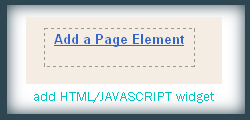
Step 2 : In that Page Element window , choose HTML / JAVASCRIPT .
Step 3 : Now add this Javascript in that window.
<style>
.showpageArea {padding: 0 2px;margin-top:10px;margin-bottom:10px;
}
.showpageArea a {border: 1px solid #505050;
color: #000000;font-weight:normal;
padding: 3px 6px !important;
padding: 1px 4px ;margin:0px 4px;
text-decoration: none;
}
.showpageArea a:hover {
font-size:11px;
border: 1px solid #333;
color: #000000;
background-color: #FFFFFF;
}
.showpageNum a {border: 1px solid #505050;
color: #000000;font-weight:normal;
padding: 3px 6px !important;
padding: 1px 4px ;margin:0px 4px;
text-decoration: none;
}
.showpageNum a:hover {
font-size:11px;
border: 1px solid #333;
color: #000000;
background-color: #FFFFFF;
}
.showpagePoint {font-size:11px;
padding: 2px 4px 2px 4px;
margin: 2px;
font-weight: bold;
border: 1px solid #333;
color: #fff;
background-color: #000000;
}
.showpage a:hover {font-size:11px;
border: 1px solid #333;
color: #000000;
background-color: #FFFFFF;
}
.showpageNum a:link,.showpage a:link {
font-size:11px;
padding: 2px 4px 2px 4px;
margin: 2px;
text-decoration: none;
border: 1px solid #0066cc;
color: #0066cc;
background-color: #FFFFFF;}
.showpageNum a:hover {font-size:11px;
border: 1px solid #333;
color: #000000;
background-color: #FFFFFF;
}
</style>
<script type=”text/javascript”>
function showpageCount(json) {
var thisUrl = location.href;
var htmlMap = new Array();
var isFirstPage = thisUrl.substring(thisUrl.length-14,thisUrl.length)==”.blogspot.com/”;
var isLablePage = thisUrl.indexOf(“/search/label/”)!=-1;
var isPage = thisUrl.indexOf(“/search?updated”)!=-1;
var thisLable = isLablePage ? thisUrl.substr(thisUrl.indexOf(“/search/label/”)+14,thisUrl.length) : “”;
thisLable = thisLable.indexOf(“?”)!=-1 ? thisLable.substr(0,thisLable.indexOf(“?”)) : thisLable;
var thisNum = 1;
var postNum=1;
var itemCount = 0;
var fFlag = 0;
var eFlag = 0;
var html= ”;
var upPageHtml =”;
var downPageHtml =”;
var pageCount=5;
var displayPageNum=3;
var firstPageWord = ‘First’;
var endPageWord = ‘Last’;
var upPageWord =’Previous’;
var downPageWord =’Next’;
var labelHtml = ‘<span class=”showpageNum”><a href=”/search/label/’+thisLable+’?&max-results=’+pageCount+'”>’;
for(var i=0, post; post = json.feed.entry[i]; i++) {
var timestamp = post.published.$t.substr(0,10);
var title = post.title.$t;
if(isLablePage){
if(title!=”){
if(post.category){
for(var c=0, post_category; post_category = post.category; c++) {
if(encodeURIComponent(post_category.term)==thisLable){
if(itemCount==0 (itemCount % pageCount ==(pageCount-1))){
if(thisUrl.indexOf(timestamp)!=-1 ){
thisNum = postNum;
}
postNum++;
htmlMap[htmlMap.length] = ‘/search/label/’+thisLable+’?updated-max=’+timestamp+’T00%3A00%3A00%2B08%3A00&max-results=’+pageCount;
}
}
}
}//end if(post.category){
itemCount++;
}
}else{
if(title!=”){
if(itemCount==0 (itemCount % pageCount ==(pageCount-1))){
if(thisUrl.indexOf(timestamp)!=-1 ){
thisNum = postNum;
}
if(title!=”) postNum++;
htmlMap[htmlMap.length] = ‘/search?updated-max=’+timestamp+’T00%3A00%3A00%2B08%3A00&max-results=’+pageCount;
}
}
itemCount++;
}
}
for(var p =0;p< htmlMap.length;p++){
if(p>=(thisNum-displayPageNum-1) && p<(thisNum+displayPageNum)){
if(fFlag ==0 && p == thisNum-2){
if(thisNum==2){
if(isLablePage){
upPageHtml = labelHtml + upPageWord +'</a></span>’;
}else{
upPageHtml = ‘<span class=”showpage”><a href=”/”>’+ upPageWord +'</a></span>’;
}
}else{
upPageHtml = ‘<span class=”showpage”><a href=”‘+htmlMap[p]+'”>’+ upPageWord +'</a></span>’;
}
fFlag++;
}
if(p==(thisNum-1)){
html += ‘ <span class=”showpagePoint”><u>’+thisNum+'</u></span>’;
}else{
if(p==0){
if(isLablePage){
html = labelHtml+’1</a></span>’;
}else{
html += ‘<span class=”showpageNum”><a href=”/”>1</a></span>’;
}
}else{
html += ‘<span class=”showpageNum”><a href=”‘+htmlMap[p]+'”>’+ (p+1) +’ </a></span>’;
}
}
if(eFlag ==0 && p == thisNum){
downPageHtml = ‘<span class=”showpage”> <a href=”‘+htmlMap[p]+'”>’+ downPageWord +'</a></span>’;
eFlag++;
}
}//end if(p>=(thisNum-displayPageNum-1) && p<(thisNum+displayPageNum)){
}//end for(var p =0;p< htmlMap.length;p++){
if(thisNum>1){
if(!isLablePage){
html = ‘<span class=”showpage”><a href=”/”>’+ firstPageWord +’ </a></span>’+upPageHtml+’ ‘+html +’ ‘;
}else{
html = ”+labelHtml + firstPageWord +’ </a></span>’+upPageHtml+’ ‘+html +’ ‘;
}
}
html = ‘<div class=”showpageArea”><span style=”padding: 2px 4px 2px 4px;margin: 2px 2px 2px 2px;color: #000000;border: 1px solid #333; background-” class=”showpage”>Page ‘+thisNum+’ of ‘+(postNum-1)+’: </span>’+html;
if(thisNum<(postNum-1)){
html += downPageHtml;
html += ‘<span class=”showpage”><a href=”‘+htmlMap[htmlMap.length-1]+'”> ‘+endPageWord+'</a></span>’;
}
if(postNum==1) postNum++;
html += ‘</div>’;
if(isPage isFirstPage isLablePage){
var pageArea = document.getElementsByName(“pageArea”);
var blogPager = document.getElementById(“blog-pager”);
if(postNum <= 2){
html =”;
}
for(var p =0;p< pageArea.length;p++){
pageArea[p].innerHTML = html;
}
if(pageArea&&pageArea.length>0){
html =”;
}
if(blogPager){
blogPager.innerHTML = html;
}
}
}
</script>
<script src=”/feeds/posts/summary?alt=json-in-script&callback=s
ho
wpageCount&max-results=99999″ type=”text/javascript”></script>
<div style=”text-align:right;font-size:10px;color:000000;margin-top:15px;display:none;”> <a href=”http://www.smashingtips.com/2008/07/page-navigation-hack-for-blogger.html”>Blogger Tips @smashigntips</a></div>
After Adding this Javascript you need to drag and drop the widget below the Blog Posts main widget. See this screen shot

In the code above you can edit the lines in red to your wish .
1 : var pageCount = 5;
The digit in red represents number of posts to be shown in single page. Change the digit to show as many pages you want.
for example :
In my blog I have put that value as 2 . In each page you can see only 2 posts .
2 : var displayPageNum = 3;
here the digit in red represents number of pages to be listed.
For example :
In my blog I have chosen 3 , then 3 pages will be shown.
Now save your template .
That’s it now we have added Page Navigation menu widget to our blog successfully .
I hope you guys will feel this method is easier than the last one.
About the author /
Mohamed Rias


4 Comments
It’s not working for me. I get the whole script shown in my page! 🙁
–
Rashed
I get the whole script shown in my page!
Ya, its working now. Thanks. 🙂
Selam Muhammed,
I’m Süleyman from Türkiye. Thanks you, for this work. It’s good work really.